Customer notifications and the tracking page
4 steps4 min read
Tell customers when to expect you without picking up the phone.
In this guide
Step 1: Choose your messages
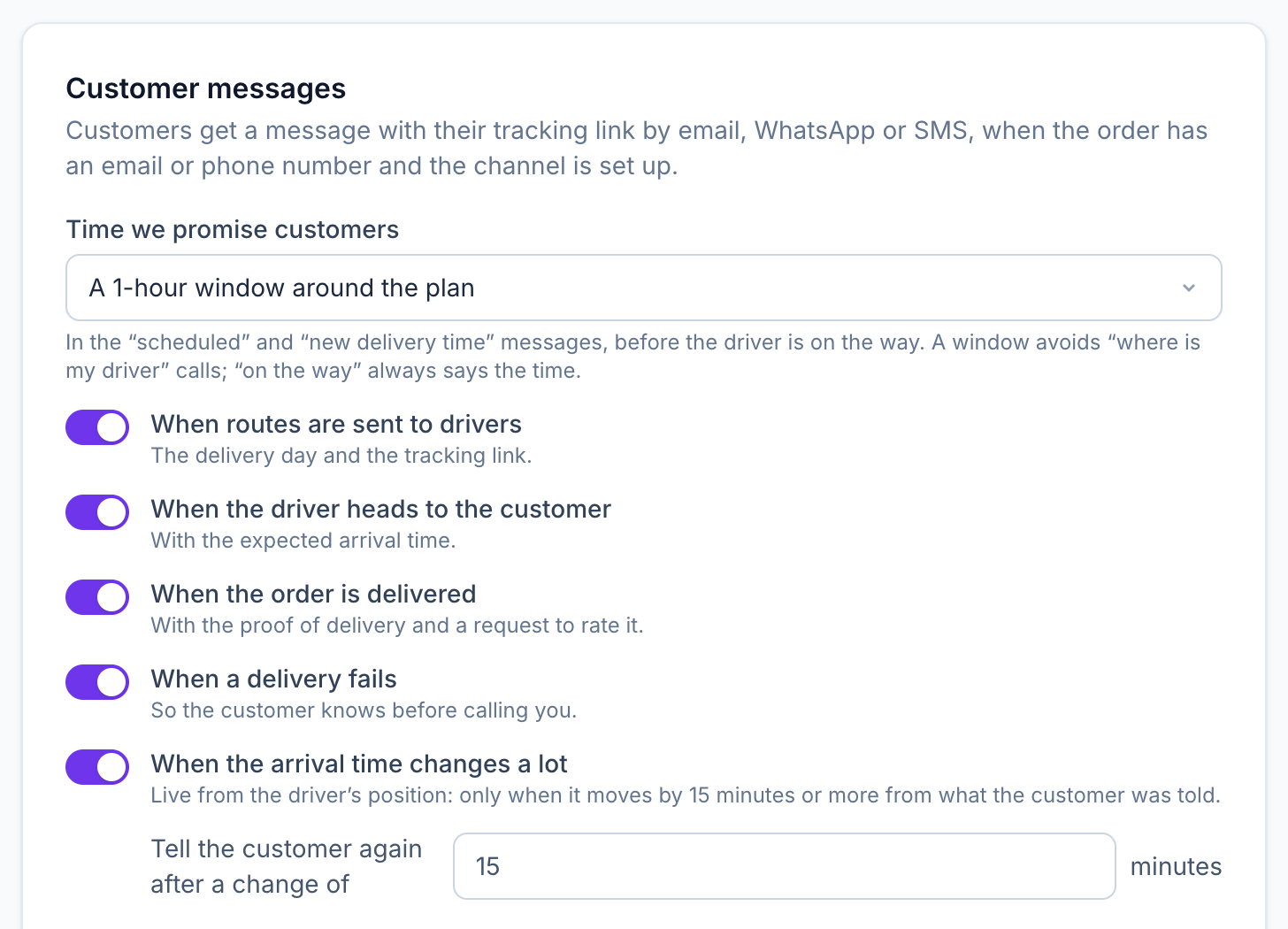
In Settings → Customer messages, switch on the messages you want: scheduled, on the way, ETA changed, delivered and not delivered. Set your quiet hours (9 PM–8 AM by default) and check the preview of each text with its SMS segment count.
Step 2: Connect SMS (optional)
Enter your Twilio Account SID, API key and sender, then send yourself a test. Email works without any setup.
Step 3: Set the promised window
Choose what customers are promised before the driver is on the way: a 1- or 2-hour window around the plan, or the order’s own time window.
Step 4: Share the tracking page
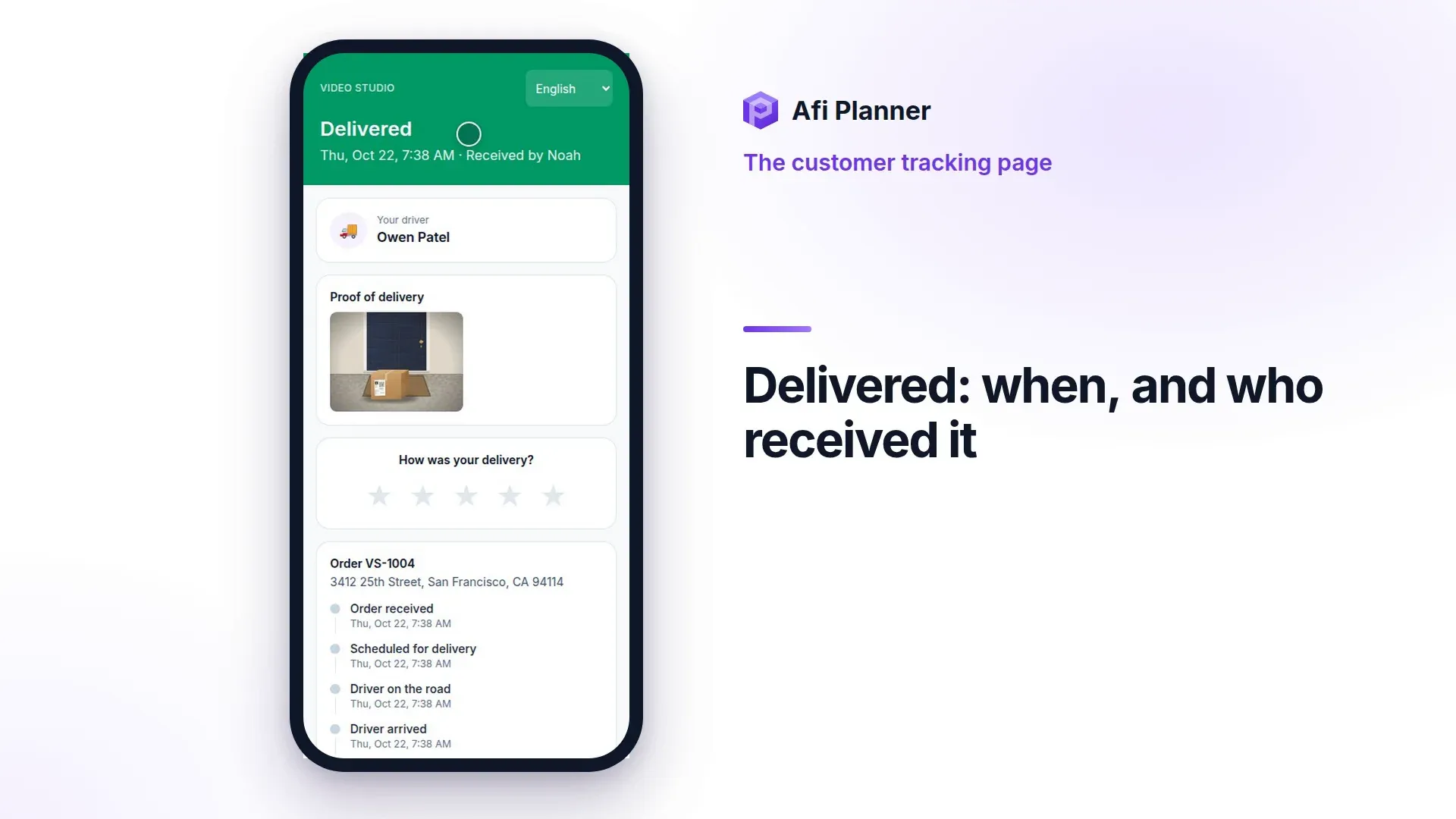
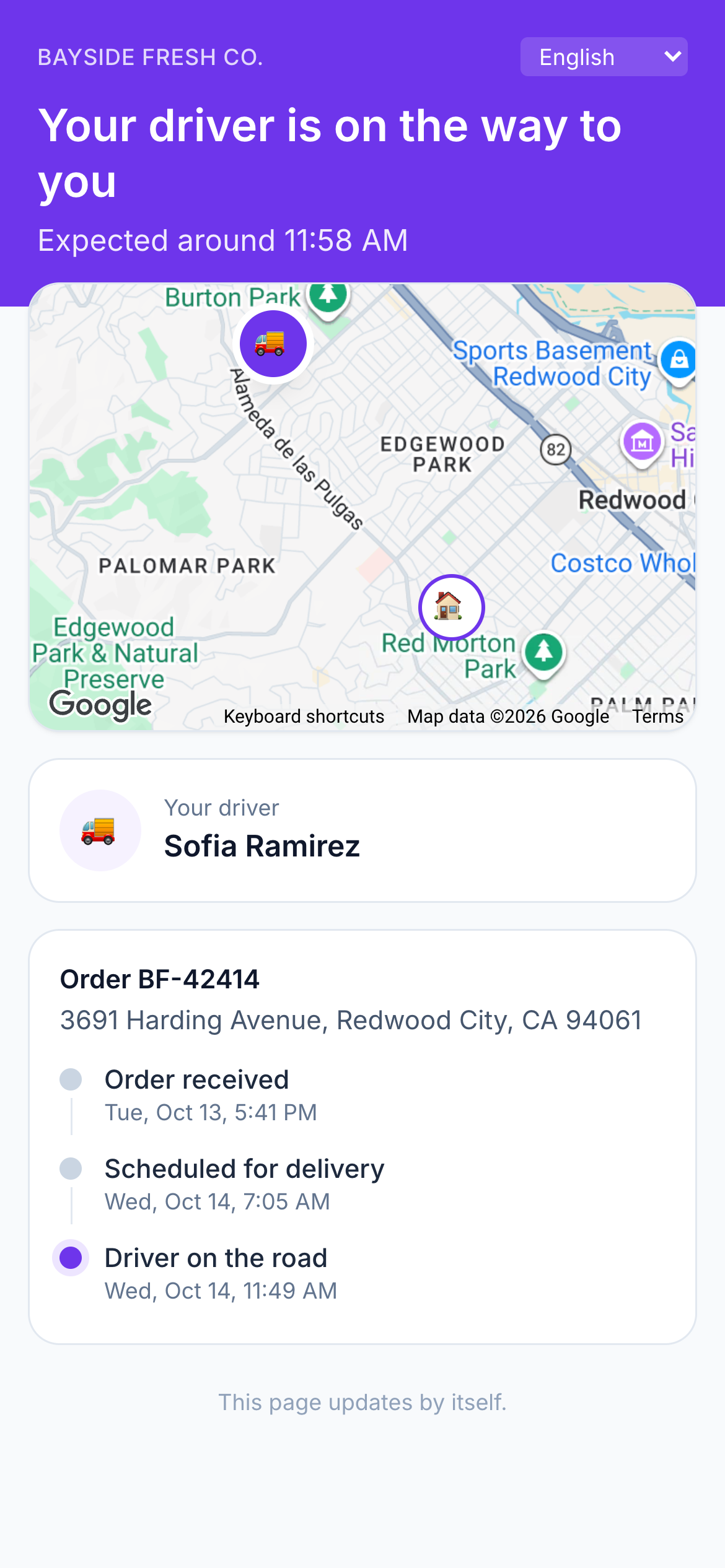
Every message links to the order’s tracking page with live status, ETA, the driver on the way and a rating after delivery. Once the driver is on the road, it says “Your driver is on the way · 3 stops before yours”, then “You’re next”. A driver still named like “Driver 1” shows as “Your driver”. To open or copy the page yourself, use Tracking page ↗ at the top of the order’s card.
Related feature
Fewer “where’s my order?” calls →